
It represents active deals and allows deeper analysis of sales actions. "Opportunities" help identify successful strategies and areas to improve. So, how do we establish an opportunity in Salesforce? Let's break down the steps on how to create an opportunity in Salesforce further.
What is Opportunity in Salesforce?
Understanding Leads
To understand Salesforce opportunities, first, it is important to know Salesforce leads. A lead in Salesforce is essentially a simple contact - it's a name, be it a person or company, with just contact specifics. Although, it doesn't convey their interest in your products. Using a process called lead qualification, a lead can transform into a Contact or an Account.
- A contact is a person who could potentially be interested in purchasing your products or services. They usually require further interaction or engagement.
- An account refers to a business or organization that has the potential to become a customer. Within this account, there can be numerous contacts or individuals associated.
Understanding Opportunities
Now, let’s understand opportunities. Unlike Contacts or Accounts, they represent potential sales or deal-making chances. Leads may or may not result in sales, but opportunities usually do. The Salesforce Opportunities feature allows you to manage all deal-related details, like involved accounts, significant contacts, and the estimated sale value. It's a practical tool to overview your ongoing sales.
Steps to Create an Opportunity in Salesforce
Here's a simple, step-by-step guide on how to create an Opportunity in Salesforce:
- Access the Related Account: Start by visiting the account related to the opportunity. Each opportunity is tied to an account.
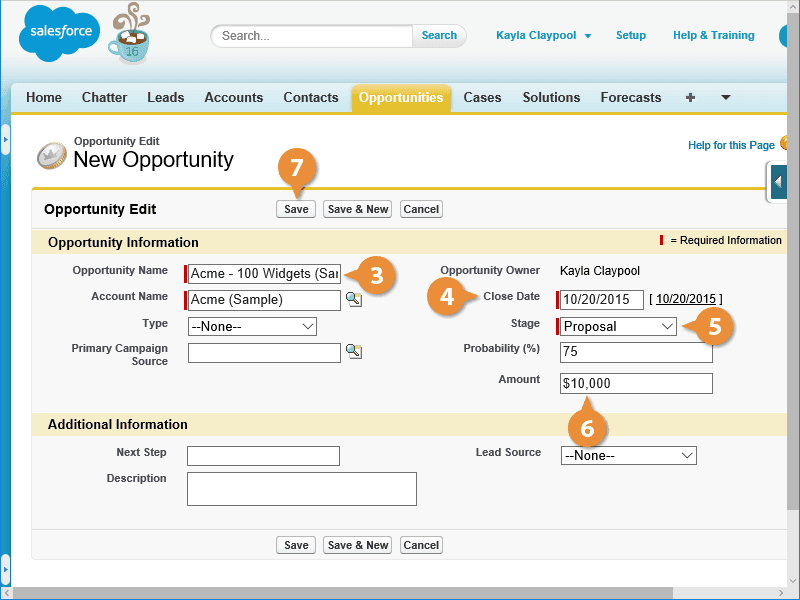
- Find the Opportunities List: Scroll down to locate the Opportunities list in the account. Click "New Opportunity."
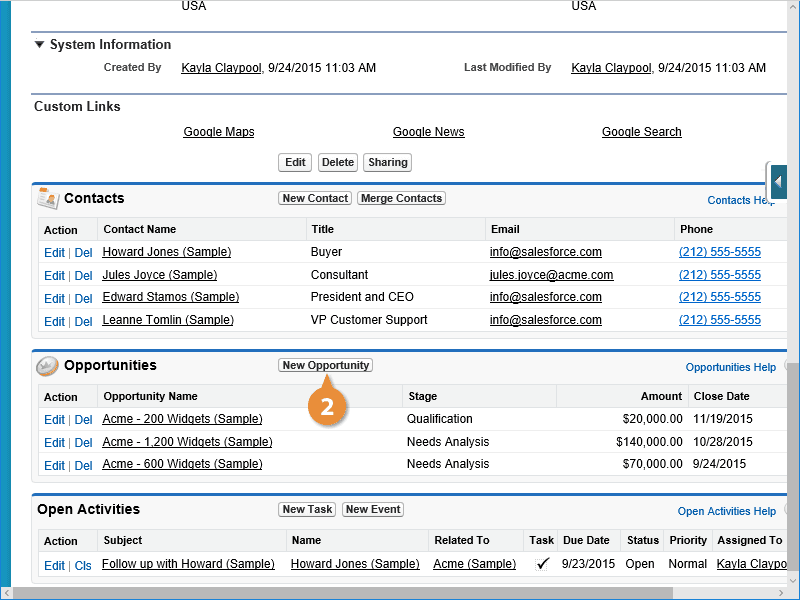
- Enter a Relevant Name: Give the opportunity a clear, relevant name.
- Pick a Close Date: Choose the estimated closure date for the sale.
- Set the Sales Stage: Mark the current sales stage of your opportunity. Tracking progress becomes easy this way.
- Input the Amount: Estimate the expected closing amount for the opportunity.
- Save Your Opportunity: Hit the "Save" button. Salesforce will keep all the data you entered for the opportunity.
Best Practices to Create an Opportunity in Salesforce
Following are the best practices to create an opportunity in salesforce. These are:
Define Your Opportunity Stages
The first step in setting up your Salesforce sales process is to define the stages of your opportunities. Consider this as preparing the basic structure for the operations. On Salesforce, the "Stage" field on the Opportunity is like a drop-down list that initially comes with ten standard choices. These can be customized to better match your business procedures. The concept of the Opportunity Stage helps indicate where your deal stands in the sales cycle and its proximity to completion. Before you customize the stages, consider the following key questions:
- What Stages Are Necessary?
Evaluate and decide whether the pre-existing stages suit you, or if you need to create new ones.
- Do You Have Various Sales Processes?
Consider using Record Types if your company has multiple sales processes, to adapt your efforts to diverse opportunity types.
- What Occurs in Each Stage?
Define each stage clearly to prevent misunderstanding and keep everyone responsible for the progression of the opportunity. Remember, Salesforce Opportunities are often utilized and examined through reports and integrations. Each stage comes with tied Type, Probability, and Forecast Category values that can be modified in line with your opportunity advancement. Still, be cautious. Alterations in the stages can significantly affect the related attributes if they aren't correctly set up. So, thoughtfully plan and apply alterations.
Introduce Salesforce Path to Your Team
You can boost your sales team's experience with Salesforce by introducing Salesforce Path. This user-friendly tool provides a clear visual of their progress through picklist values. Rather than just providing a drop-down list, Salesforce Path displays a chevron diagram that guides users through up to five key fields, also offering valuable 'Guidance for Success'. And the best part is, it's not just restricted to Opportunities or the Stage field. You can tailor it to fit different objects and fields and even personalize it for specific Record Types.
Utilize Opportunity Teams
When handling big tasks, it's normal for more than one person on a team to be involved, not just the Sales manager. This is where "Opportunity Teams," similar to "Account Teams," come in. They promote teamwork. These teams can access hard-to-reach Opportunities, especially those with tough access settings. They also recognize each person's work through optional Opportunity Splits. Opportunity Teams are simple to use. You can easily add, delete, or change team members. Plus, you can allot jobs and make unique fields for your company on the Opportunity Team Member if needed. This provides a smooth, team-oriented process to effectively manage and monitor group contributions in closing opportunities.
Use Validation Rules for Accurate Data
Data quality, especially when it comes to Opportunities in Salesforce, can't be compromised. It's tied firmly to income details and tracking. This quality can be maintained using Validation Rules. These rules act as triggers, warning users about missed or wrong data, and the distinct red warning signs are indeed successful. Just like other objects in Salesforce, you can make Validation Rules just for Opportunities
Check for Opportunity Contact Roles
When running a business, it's usual to interact with multiple people from a single client. They all have unique roles in the transaction. It's important to note down these interactions on the Opportunity record. This is where Salesforce's Contact Roles feature comes in handy. Salesforce's Contact Roles is a standard feature available in Opportunities, Contracts, and Cases when using Lightning Experience (for Salesforce Classic, Account Contact Roles are applicable). In the context of Opportunities, the Contact Roles section acts much like a list that refers to the Opportunity Contact Role Standard Object. You have the provision to add several contacts, with each giving a unique role, be it standard or custom.
Conclusion
Creating an Opportunity in Salesforce is key for effective sales planning. Opportunities show ongoing deals in detail and give a full view of your sales activities. The main tasks involve handling leads, choosing close dates, and picking sales stages. Salesforce Path acts as an easy guide and opportunity to help team members work better together.