

However, using these features means opening multiple tabs in several scenarios. For example, while closing a huge sales deal, a sales representative may need to open multiple tabs simultaneously - Customer Profile, Lead Qualification, Negotiation and Pricing, and Contract tab, to name a few. There is a legitimate concern that opening several tabs can overuse network bandwidth, resulting in slower app performance, not to mention clutter and lack of organization. Therefore, knowing how to close all tabs in Salesforce is as essential as using all its features.
Why Should You Close All Tabs in Salesforce?
considerably slow down the app's performance and cause several problems. Here are a few reasons to reduce the number of open tabs in Salesforce. While using Salesforce, opening multiple tabs to access data from various tabs and keep the workflow going is natural and often inevitable. However, keeping unused tabs open can
- Keep your workspace clutter-free
- Free up computer memory
- Extract optimal app performance
Reduce security issues and vulnerability of data theft and data loss.
Tabs in Salesforce
Before understanding how to close tabs, it's essential to understand all the kinds of tabs that Salesforce offers. Tabs are a part of the user interface, allowing users to access and navigate to the other features, elements, and objects in the Salesforce application.
Salesforce has five types of tabs:
- Standard Object Tabs
Standard Object Tabs are basic tabs representing data related to standard objects such as Accounts and Contacts.
- Custom Object Tabs:
As the name implies, custom object Tabs display data in custom objects specific to a company's requirements.
- Web Tabs
Tabs that display external applications and web pages in the Salesforce app are seen on Web tabs.
- Lightning Page Tabs
These tabs are available to access information on the lightning component of Salesforce.
- Visualforce Tabs
Visualforce is a user interface within Salesforce. The visual force tabs allow developers to access code related to building user interfaces.
Tabs are a significant aspect of the user interface in Salesforce. If the Tab is in DEFAULT ON mode, it is visible and displayed on the horizontal bar at the top. The user can access tabs in the DEFAULT OFF mode, even if they are not visible on the tab bar. Tabs can be HIDDEN mode by the user if required.
Salesforce Classic and Salesforce Lightning
Salesforce introduced Lightning in 2014, a powerful yet lighter version of Salesforce Classic with plenty of mobile-friendly and user-friendly features. The user interface of Salesforce Classic is stark and almost plain compared to Lightning's sleeker, modern interface. From page layouts and functionalities to features, the two have as many differences as similarities. It, therefore, becomes vital to study and understand the differences between both about how to close tabs in Salesforce.
Closing All Tabs in Salesforce Classic
An in-built feature in Salesforce Classic allows you to close all open tabs. Primary tabs in Salesforce display the main information users are currently working on and do not restrict the number of tabs the users can open.
To close all the open tabs:
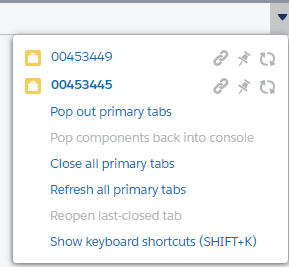
Using the browser options
- Move to the right-hand corner of the tabs bar.
- Access the drop-down menu and then choose Close all PrimaryTabs.
Using Shortcut Keys
- Press and continue to hold the Shift key on your Keyboard
- Press the W key. W here stands for workspace.
This will close all the open tabs, including the unused ones.
Closing All Tabs in Salesforce Lightning
Users familiar with Classic Console were concerned about the lack of a Close all tabs in Salesforce when they migrated to Salesforce Lightning and were constantly looking for ways to accomplish this.
Here are some ways to use if you wish to close tabs in Salesforce Lightning.
Using Shortcuts
- SHIFT +W closes all open tabs in Lightning. This is the most accepted and failsafe method for closing tabs. The other tedious option is manually closing each open Tab using the ❎ symbol.
- Pressing and holding on SHIFT key +X closes all Tabs.
Salesforce Spring '22 Release Notes
This offers a new solution to users who want to avoid seeing old tabs when they open a new console session.
Go to
App Settings>App Manager>Set up &Personalization>App Personalization Settings>Clear workspace tabs for each new console session.
However, this option is available only to Salesforce administrators with View Setup and Configuration and Customize Application permission.
Custom Methods
Developers have worked out specific and customized solutions to avoid the strain and pain of individually closing tabs.
- One such method used by a developer is to use Lightning console JavaScript API to query open tabs and select the ones that need to be closed. This feature can be implemented on the utility bar.
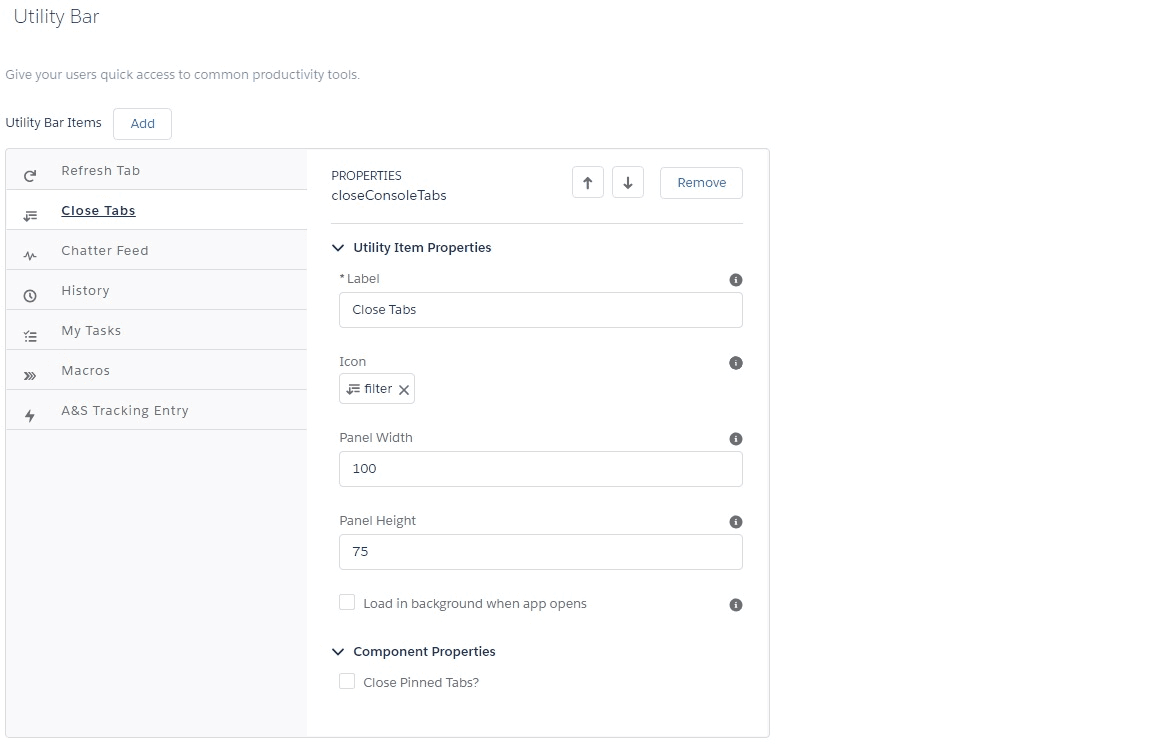
Another custom developer-built method to close all tabs when a user needs to log into a new session is by using a custom field on the user, a aura utility component, a login flow, and an apex controller class.
Bonus Tips
- It is also possible to reopen up to ten tabs using the SHIFT +C button.
- Salesforce Lightning can limit the number of tabs you wish to see at one time. Go to Userinterface>Lightning Experience>Tabs> Set Maximum Number of Tabs.
Conclusion
The advantages of opening and using multiple tabs simultaneously in Salesforce are immense. However, it can also result in information overload, security risks, and a sense of clutter. To quickly cut down on the number of tabs open in Salesforce, it is wise to learn to close all tabs in Salesforce (browser or keyboard shortcuts) best suited to your working style. Good tab management practices -prioritizing open tabs, organizing tab sets, and closing all tabs, can go a long way toward better app response and overall performance.
style. Good tab management practices -prioritizing open tabs, organizing tab sets, and closing all tabs, can go a long way toward better app response and overall performance.